

Sticky sections index
Status: ✅ Implemented — @Toc, @Section(sticky = true)
Intent
Section titled “Intent”Show a long form as a single scrollable page where everything is visible, and give the user a sticky index to jump between sections — plus the option to pin a key section so it never leaves the viewport.
Problem
Section titled “Problem”A screen with many sections has two common failure modes. Hiding content behind tabs keeps the page short but forces the user to remember where things are and to click around. Stacking everything vertically makes it all visible but turns navigation into endless scrolling, and the reference data you keep looking back at (a guest list, the reservation header) scrolls away just when you need it.
Solution
Section titled “Solution”Annotate the page class with @Toc to render a sticky index (table of contents) of its sections
in a right-hand sidebar. Clicking an entry scrolls to that section; the entry for the section you’re
looking at highlights as you scroll.
@UI("/checkin/:id")@Toc@Style(StyleConstants.FULL_WIDTH_WITH_PADDING)public class CheckInForm {
    @Section("Información general de la reserva")    ReservationInfo general;
    @Section("Check-in")    CheckInData checkIn;
    // Pinned: the guest list stays in view while the rest scrolls.    @Section(value = "Huéspedes", sticky = true)    GuestList guests;
    @Section("Información cliente")    ClientInfo client;
    // … more sections …}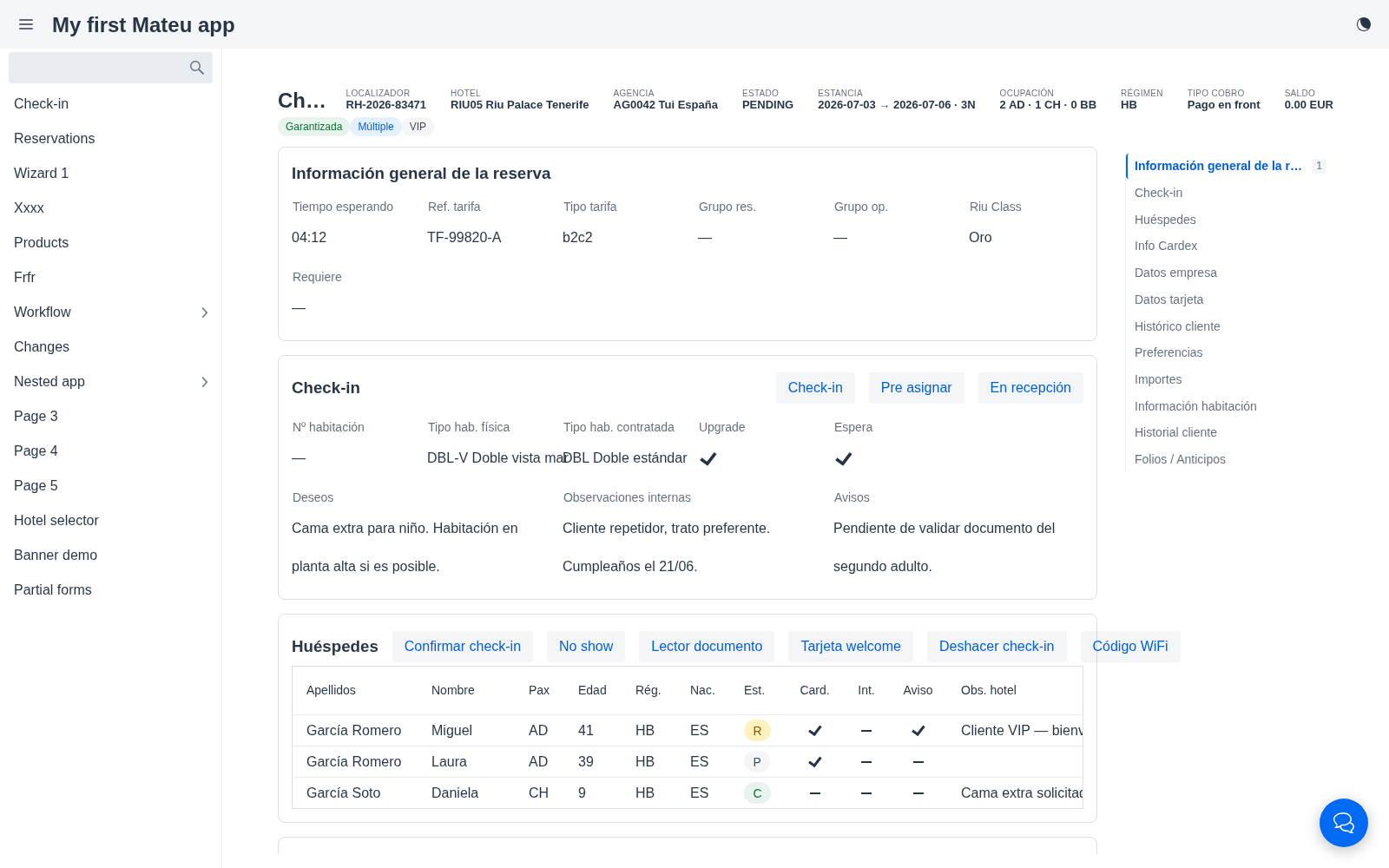
Pinned sections — @Section(sticky = true)
Section titled “Pinned sections — @Section(sticky = true)”Mark any section sticky = true and its card is pinned (position: sticky) so it never leaves the
viewport while the rest of the page scrolls under it — ideal for a reference list or a summary you
keep glancing at. In docs mode the page header is pinned too, and multiple sticky sections
stack neatly under it (each pinned below the previous, with a small gap) instead of overlapping.
@Toc is tri-state
Section titled “@Toc is tri-state”| Form annotation | Index |
|---|---|
| (absent) | Auto — shown only when there are more than four vertically-stacked sections and the form is not a @Zones / horizontal layout |
@Toc / @Toc(true) | Forced on |
@Toc(false) | Suppressed |
So a long single-column form gets the index for free; you only reach for the annotation to force it on a shorter form or to turn it off.
Keyboard shortcuts
Section titled “Keyboard shortcuts”While the index is shown, Ctrl+Alt+1..9 jump to the first nine sections (the shortcut number is
shown as a faint badge on each index entry). Clicking or pressing a shortcut keeps that entry
highlighted even if the section sits near the bottom and can’t scroll all the way to the top. See
Keyboard Shortcuts.
Sections vs tabs
Section titled “Sections vs tabs”@Toc and tabs solve the same “too many sections” problem in opposite ways — pick per screen:
Tabs (@Tab) | Sections index (@Toc) | |
|---|---|---|
| Content | One group visible at a time | Everything visible, stacked |
| Navigation | Click a tab | Scroll, or click/keyboard-jump in the index |
| Best for | Occasional users, compact screens | Power users reviewing a whole record top-to-bottom |
| Pairs with | @Compact, @Zones | @Section(sticky), full-width |
To turn a tabbed section into indexed sections, promote each @Tab group to its own top-level
@Section (a @Tab inside a nested @Inline type groups into tabs, not sub-sections — the split
has to happen at the top level).
Principles served
Section titled “Principles served”- Minimize navigation — the whole record is visible and one keystroke away
- Workflow over screens — reference sections stay pinned while you work through the rest
- Keyboard-first — jump to any section without the mouse